Wireframe display mode
Tools > Options > View > Display Modes > Wireframe
The Wireframe display mode sets the viewport display to unshaded wireframe. 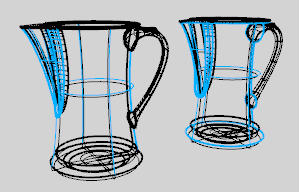
Display mode options
Name
Name of display mode.
Viewport settings
Background
Specifies the viewport background color.
Use application settings
Use settings specified in Appearance -> Color Options.
Solid color
To select a color
- Click the color swatch.
Image file
Specifies an image for the viewport background.
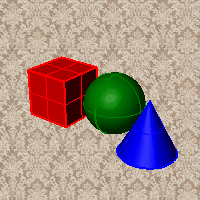
Image file name
- Type or browse for the file name.
Gradient 2 colors
Blends between a top and bottom color.
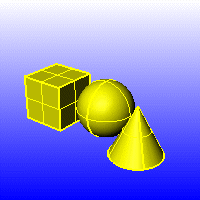
Top color / Bottom color
To select a color
- Click the color swatch.
Gradient 4 colors
Blends between four colors starting from the corners of the viewport.
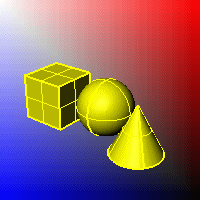
Top left color / Top right color / Bottom left color / Bottom right color
To select a color
- Click the color swatch.
Use render settings
Displays the colors and lighting used by the settings for background specified by the current renderer.
Transparent
Renders viewport backgrounds using black and a 0.0% alpha value. This works for rendered output and for ViewCaptureToFile.
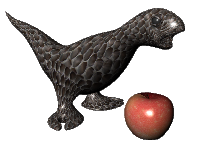
Visibility
Specifies which elements will be visible in the display mode.
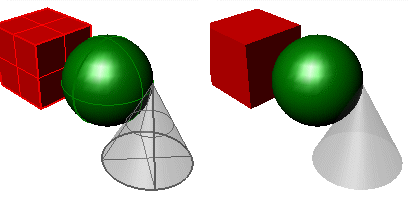
Surface Edges
Shows the edges of NURBS surfaces.
Tangent Edges
Tangent polysurface edges are smooth edges between different faces of a polysurface.
Tangent Seams
Tangent seams are smooth edges that close surfaces such spheres or cylinders.
Shows mesh wires.
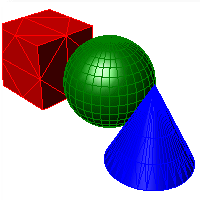
SubD Creases
Toggles visibility of SubD creased edges.
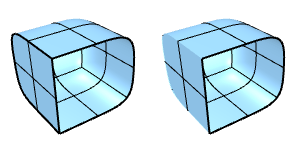
SubD Wires
Toggles visibility of SubD smooth edges.
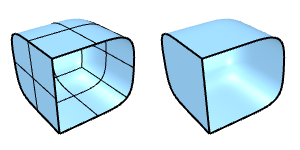
SubD Boundaries
Toggles visibility of SubD naked edges.
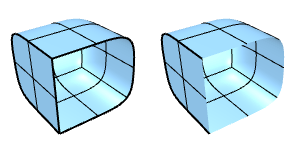
SubD Symmetry
Toggles color differentiation of SubD symmetry children.
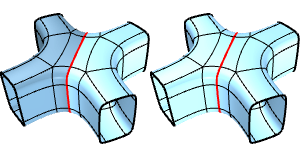
Mesh Wires
Toggles visibility of welded mesh edges.
Curves
Shows curves objects.
Lights
Shows lights objects
Clipping Planes
Shows clipping planes objects.
Text
Shows text blocks.
Annotations
Shows annotations objects.
Points
Shows points objects.
Point Clouds
Shows pointclouds objects
Lighting scheme
See Lighting scheme settings.
Grid
Objects
See Objects settings.
Points
See Points Settings.
Curves
See Curves Settings.
Surfaces
See Surfaces settings.
SubD
See SubD settings.
Meshes
See Meshes settings.
Lights
See Lights settings.
Clipping Planes
Shadows
See Shadows settings.
Other Settings
See Other Settings.
Restores the default system values. All custom appearance settings will be lost.
Save option settings for use on other computers

OptionsExport
Save Options settings to a file.

OptionsImport
Restore Options settings from a file.
See also

Snapshots
The Snapshots command saves and restores Named Views, Named Positions, Layer States, as well as rendering settings, object settings including locked/hidden state, display mode, material, position, light settings, curve piping, displacement, edge softening, shutlining, and thickening.