SoftTransform
|
Toolbar |
Menu |
|---|---|
|
|
Window Panels > SoftTransform Transform SoftTransform |


The SoftTransform command opens the Soft Transform panel that allows editing object grips with different falloff types within a specified range.
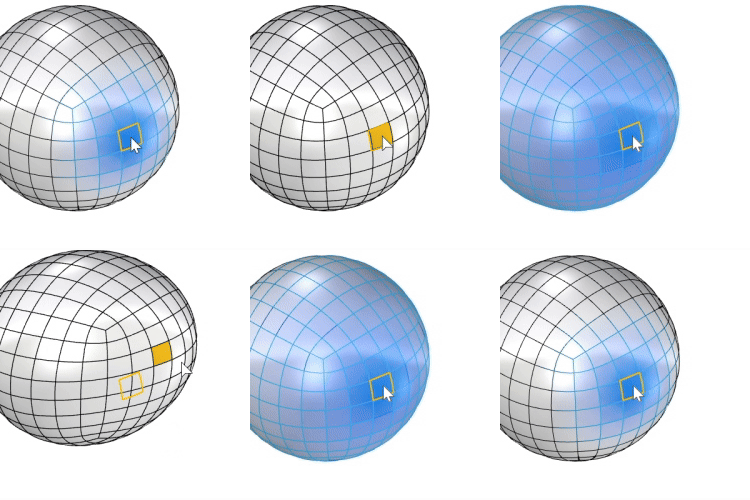
-
Mesh and SubD sub-objects, NURBS control points
 or edit points, and Cage points are supported.
 -
Soft transform works with mouse dragging, Gumball editing, and transform commands, such as Move, Rotate, and Scale.
Steps
-
Run the SoftTransform command.
-
In the Soft Transform panel, turn Enable on.
-
Select supported object grips or sub-objects.
-
Adjust the Radius to define the influence range.
-
Choose a Shape type to control the falloff effect.
-
Use Gumball, mouse dragging, or transform commands to editing the selection.
 Soft Transform Panel
 Toggle Soft Transform
Turns soft transform on or off.
Closing the panel also turns soft transform off.
Radius
Sets the size of the influence range.
 Set radius from sphere
Defines the radius by drawing a sphere in the viewport.
Slider actions
-
Double-click the slider to enter a number.
-
Drag the slider past the right end to extend the range.
-
Drag the slider while holding the Shift key to snap to whole numbers.
-
When supported grips or sub-objects are selected, Rhino displays a visual cue for the affected area and the grips display as solid points.
-
In shaded display modes, influence strength is shown with a color gradient.
Distance Measure
Controls how neighboring grips are found.
Spherical
Uses the radius from the selected grip.
Along object
Expands or shrinks the influence range toward adjacent object grips or sub-objects.
-
This mode enables the Count U and Count V sliders in the Surface section, which control the influence range of surface control points.
Shape
Controls how nearby grips are influenced within the radius.
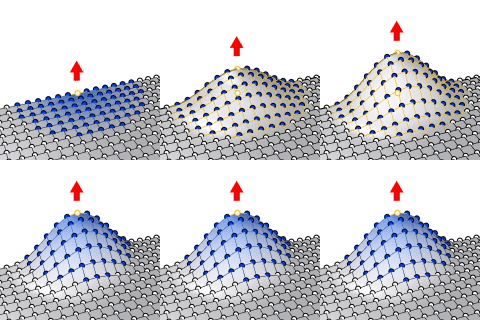
 Smooth
Influence strength decreases slowly near the center and near the edge.
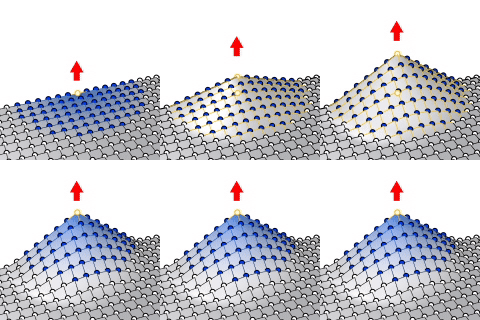
 Linear
Influence strength decreases at a constant rate.
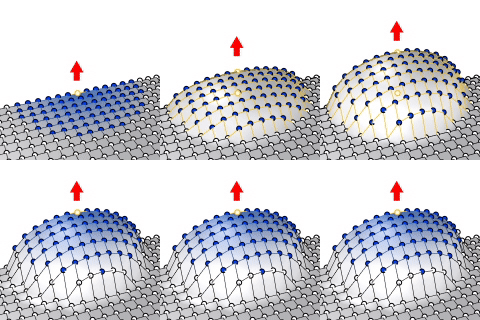
Round
Influence strength decreases slowly near the center and quickly toward the edge.
 Sharp
Sharp
Influence strength decreases quickly near the center and slowly toward the edge.
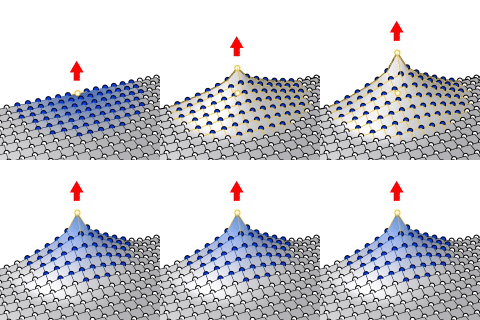
Falloff Color
Sets the display color used for influence strength, which can be visualized with a color gradient on the objects.
Surface
These settings are only available when editing surfaces.
Count U/V
Controls the influence range separately in the U and V directions when Distance Measure is set to Along object.
Boundary constraints
Control whether control points near the surface edges are moved to preserve the desired continuity.
The labels near the edges show the continuity constraints.
-
Left-click a label to step through None (-), G0, G1, and G2. Right-click the label to reverse the cycling direction.
-
Hold Shift while left-clicking or right-clicking to apply the same continuity level to all labels.
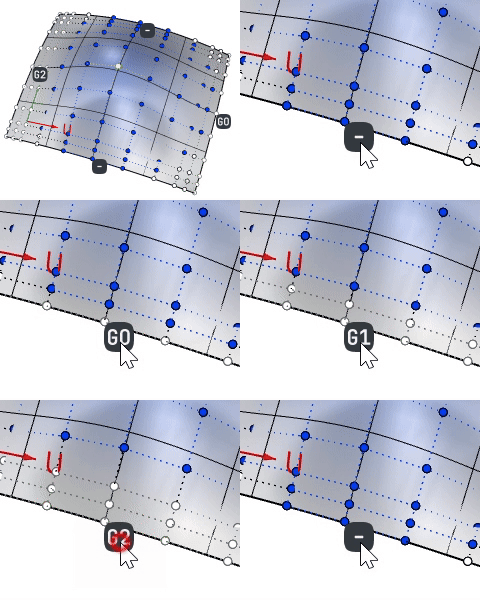
None (-)
Do not constrain control points along the surface boundary.
G0
Locks the first row of control points along the boundary.
G1
Locks the second row of control points along the boundary.
G2
Locks the third row of control points along the boundary.
See also

SoftEditCrv
Move the surrounding curve area smoothly relative to the distance.

SoftEditSrf
Move the surrounding surface area smoothly relative to the distance.

SoftMove
Move objects relative to a center with falloff.