Scale
| Toolbar | Menu |
|---|---|
|
|
Transform Scale > Scale 3-D |

The Scale command changes the size of selected objects uniformly in the x, y, and z directions.
Steps
To scale an object from an arbitrary size to a specific one
- Use the origin point and the first reference point to establish the original size of the object.
- Type the new size for the second reference point.
When scaling by dragging, the scale factor becomes the default the next time you use that scale command.
 User's Guide - Transform Commands
| Command-line options | |
|---|---|
|
Copy |
Specifies whether or not the objects are copied. A plus sign The RememberCopyOptions command determines whether the selected option is used as the default. |
|
Rigid |
Specifies that individual objects will not be deformed as they are transformed. The illustration shows the Rigid option with the Bend command. YesIndividual objects will not change, only their positions will change. NoIndividual objects are transformed as well as their positions. 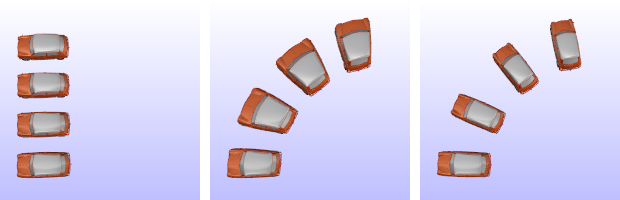 Original objects (left), Rigid=No (center), Rigid=Yes (right). |
|
Type subcrv to select part of a curve as input. |
|

| Toolbar | Menu |
|---|---|
|
|
Transform Scale > Scale 1-D |


The Scale1D command changes the size of selected objects in one direction.
Steps
- Select objects.
- Pick a base point, or press Enter to use the center of the bounding box of all selected objects as the base point.
-
Type the scale factor and a direction, or pick two reference points.
Typing 0 for the scale factor flattens the object in the picked direction.
The objects expand or contract in the single direction specified, without expanding the objects in the other directions.
When scaling by dragging, the scale factor becomes the default next time the Scale1D command is used.
User's Guide - Transform Commands
| Command-line options | |
|---|---|
|
Copy |
Specifies whether or not the objects are copied. A plus sign The RememberCopyOptions command determines whether the selected option is used as the default. |
|
Rigid |
Specifies that individual objects will not be deformed as they are transformed. The illustration shows the Rigid option with the Bend command. YesIndividual objects will not change, only their positions will change. NoIndividual objects are transformed as well as their positions. Original objects (left), Rigid=No (center), Rigid=Yes (right). |
|
Type subcrv to select part of a curve as input. |
|
| Toolbar | Menu |
|---|---|
|
|
Transform Scale > Scale 2-D |


The Scale2D command changes the size of selected objects uniformly in two directions.
Steps
- Select objects.
- Pick a base point, or press Enter to use the center of the bounding box of all selected objects as the base point.
- Type the scale factor, or pick two reference points.
- The objects are expanded or contracted uniformly in the two directions of the axes of the active viewport construction plane where you specify the scale factor.
When scaling by dragging, the scale factor becomes the default next time the Scale2D command is used.
User's Guide - Transform Commands
| Command-line options | |
|---|---|
|
Copy |
Specifies whether or not the objects are copied. A plus sign The RememberCopyOptions command determines whether the selected option is used as the default. |
|
Rigid |
Specifies that individual objects will not be deformed as they are transformed. The illustration shows the Rigid option with the Bend command. YesIndividual objects will not change, only their positions will change. NoIndividual objects are transformed as well as their positions. Original objects (left), Rigid=No (center), Rigid=Yes (right). |
|
Type subcrv to select part of a curve as input. |
|
| Toolbar | Menu |
|---|---|
|
|
Transform Scale > Non-Uniform Scale |

The ScaleNU command changes the size of selected objects in three directions using different lengths for each direction.
Steps
- Select objects.
- Pick an origin.
- Type the x scale factor, or pick two reference points.
(Press Enter for a scale of 1.0.) - Type the y scale factor, or pick two reference points.
(Press Enter for a scale of 1.0.) - Type the z scale factor, or pick two reference points.
(Press Enter for a scale of 1.0.)
The objects expand or contract in the three directions with the scale factor values specified.
| Command-line options | |
|---|---|
|
Copy |
Specifies whether or not the objects are copied. A plus sign The RememberCopyOptions command determines whether the selected option is used as the default. |
|
Rigid |
Specifies that individual objects will not be deformed as they are transformed. The illustration shows the Rigid option with the Bend command. YesIndividual objects will not change, only their positions will change. NoIndividual objects are transformed as well as their positions. Original objects (left), Rigid=No (center), Rigid=Yes (right). |
|
WorldCoordinates |
Use world coordinates for the scaling direction. |
|
Type subcrv to select part of a curve as input. |
|
| Toolbar | Menu |
|---|---|
|
|
|


The ScaleByPlane command changes the size of objects in two directions non-uniformly on the specified plane.
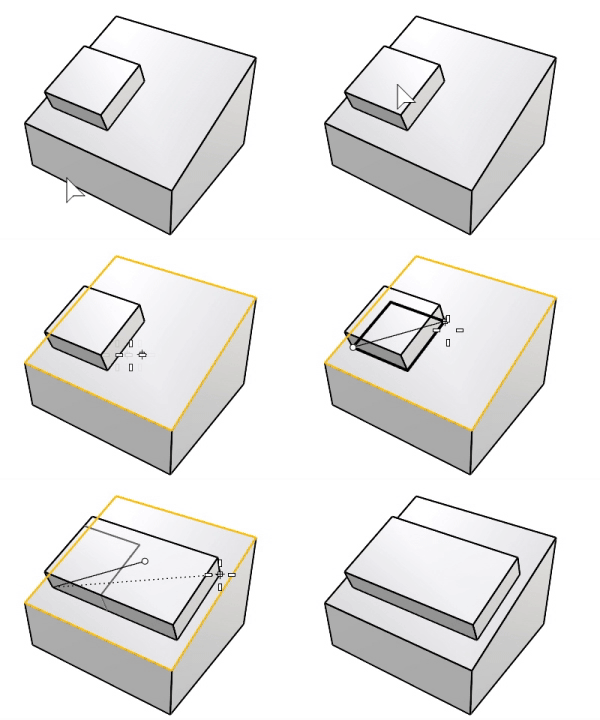
Steps
Command-line options
Copy
Specifies whether or not the objects are copied. A plus sign  appears at the cursor when copy mode is on.
The RememberCopyOptions command determines whether the selected option is used as the default.
Plane
Specifies the plane.
ActiveCPlane
Uses the active construction plane as the reference plane.
3Point
Pick three points to specify the reference plane.
Object
Select a planar object to specify the reference plane.
FromView
Uses the specified view plane as the reference plane.
WorldTop
Uses the world x,y plane as the current reference plane.
WorldRight
Uses the world y,z plane as the current reference plane.
WorldFront
Uses the world x,z plane as the current reference plane.
Rigid
Specifies that individual objects will not be deformed as they are transformed.
The illustration shows the Rigid option with the Bend command.
Yes
Individual objects will not change, only their positions will change.
No
Individual objects are transformed as well as their positions.
Original objects (left), Rigid=No (center), Rigid=Yes (right).

|
Toolbar |
Menu |
|---|---|
|
|
Transform Scale > Scale multiple objects |

The ScaleEach command scales multiple objects independently from each object’s own origin point using different scaling methods.
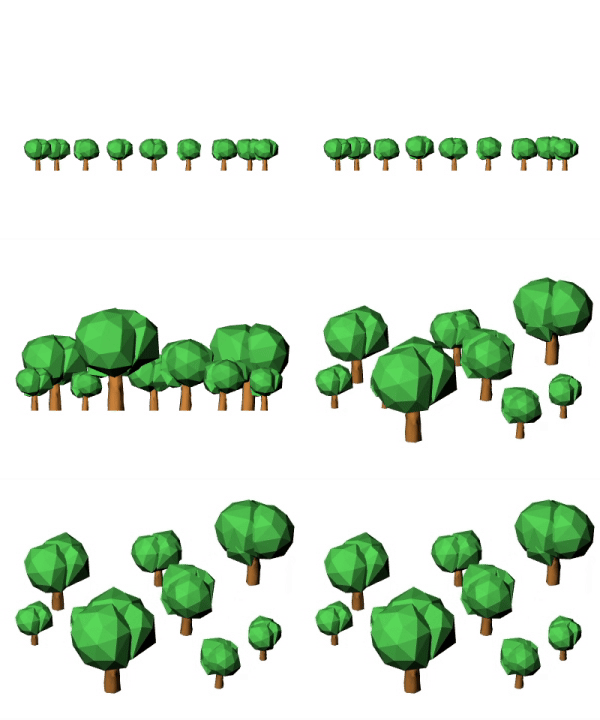
Steps
-
Select the objects to scale.
-
Specify the scale factor options.
-
Adjust the slider in the viewport.
-
Double-click the slider to enter a number.
-
Drag the slider past the right end to extend the range.
-
Command-line options
Copy
Keeps the input objects.
HideInput
Hides the input objects while previewing the result.
From
Sets the origin point used to scale each object.
Centroid
Scales each object from its area centroid.
BoundingBoxMiddleCenter
Scales each object from the center of its bounding box.
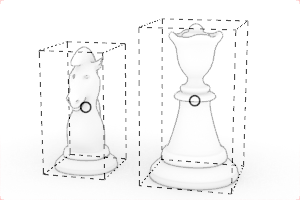
BoundingBoxBottomCenter
Scales each object from the bottom center of its bounding box.
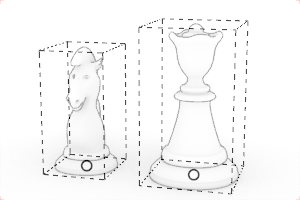
AnyBoundingBoxPoint
Scales each object from a point relative to its bounding box.
-
Pick a point near the displayed bounding box to specify the reference point.
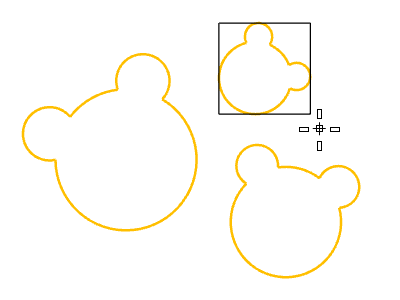
GumballAnchor
Scales each object from its origin of the align-to-object Gumball.
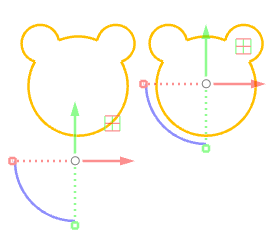
NUAxes
Constrains scaling to the selected axes for each object.
The axes are based on the active CPlane. Make sure the ScaleEach command is run in the correct viewport.
All
Scales each object along all axes.
XAxis/YAxis/ZAxis
Scales each object only along the selected axis.
XYPlane/YZPlane/XZPlane
Scales each object along the two axes of the selected plane.
Factor
Sets how scale factors are assigned to the selected objects.
Uniform
Sets one scale factor for every object.
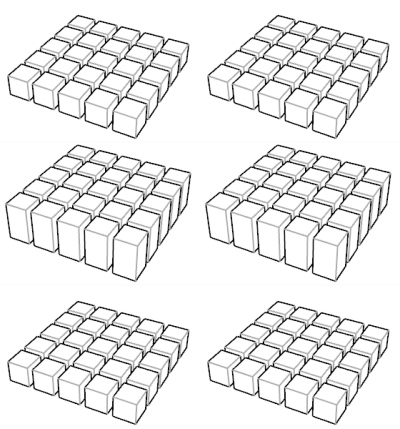
SelectionOrder
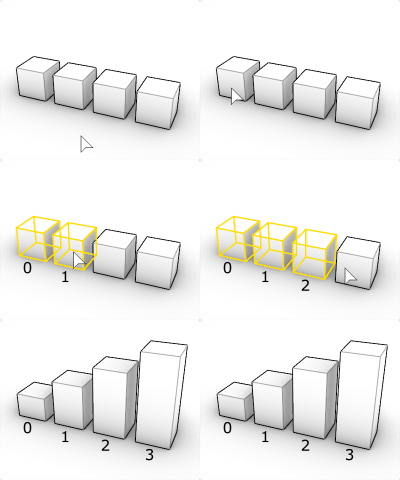
Scales objects progressively based on the selection order of objects.
When objects are selected with a window selection or are preselected, the most recently created or edited object is last in the selection order.
Random
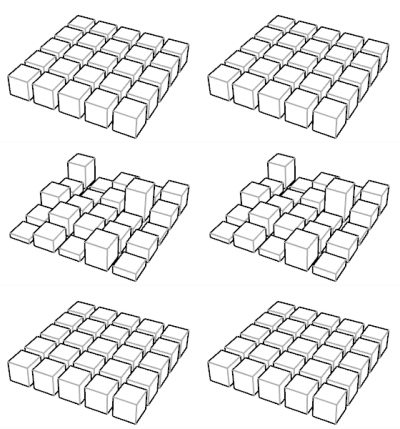
Scales objects with random factors within the range defined by two values.
Gradient
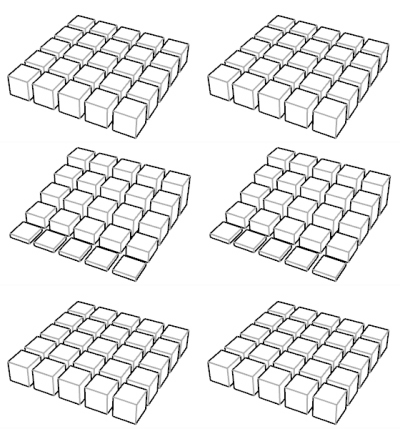
Scales objects with scale factors controlled by a linear gradient between two values.
Attractor
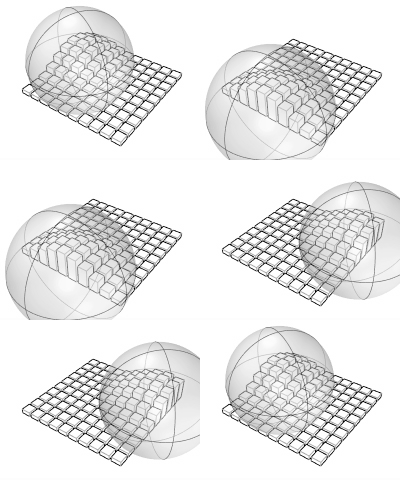
Applies scale values that change radially between the center and circumference of an attractor sphere.
| Toolbar | Menu |
|---|---|
|
|
|

The ScalePositions command scales objects' boundingbox center points to new locations and use them to relocate the objects.
Steps
- Select objects.
- Pick an origin.
- Type a scale factor, or pick two reference points.
The objects are expanded or contracted in one, two, or three directions.
Note: If a scale factor is entered, the command prompts for picking a point to define the scale direction. The scale direction makes a difference in the 1D and 2D modes, but not in the 3D mode.
| Command-line options | |
|---|---|
|
Copy |
Specifies whether or not the objects are copied. A plus sign The RememberCopyOptions command determines whether the selected option is used as the default. |
|
Mode |
Specifies the directions the scaling will happen. 1DSpaces the objects in one direction. 2DSpaces the objects in two directions. 3DSpaces the objects in three directions. |
See also

Gumball
Display the gumball widget on a selected object facilitating move, scale, and rotate transformations around the gumball origin.

History
Store the connection between a command's input geometry and the result, so that when the input geometry changes, the result updates accordingly.

RememberCopyOptions
Specify whether Copy option on transform commands is stored.