AlignVertices
| Toolbar | Menu |
|---|---|
|
|
Mesh / SubD Repair Tools > Align Vertices |


The AlignVertices command forces mesh or SubD vertices to the same location.
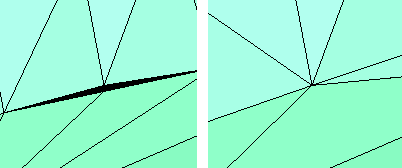
- Some STL/SLA printers have problems if meshes contain many long, thin facets. These facets can slow the printer down, produce odd results, or run the printer out of memory.
- The MeshRepair command may be useful when tuning up meshes for STL/SLA printing.
Steps
-
Select mesh or SubD objects, and specify command line options, press Enter.
You can also select these objects:

- Point clouds and points.
- Lines, polylines, and other degree 1 curves.
- Curve control points that are turned on.
- Mesh or SubD vertices, edges, and faces (Sub-selected). Only the vertices of the sub-selected objects are aligned.
If the distances between vertices are smaller than the value of DistanceToAdjust, the vertices are forced together.
This command is useful for fixing areas that have many vertices that should be in the same spot but for some reason are not.
Command-line options
SelectVertices
Lets you select vertices to align.
The control points of lines and polylines are turned on, so you can select them. They are turned off again when the command ends.
SelectNakedEdges
Lets you select naked edges to align all vertices on the naked edge.
You can also select lines and polylines. All their points are aligned.
DistanceToAdjust
Sets the tolerance distance.
OnlyNakeds
Specifies which vertices are aligned.
Yes
Only vertices on naked edges are aligned.
No
All vertices within the DistanceToAdjust value are aligned.
AutoDistance
Measures the gaps in the selected objects and sets the DistanceToAdjust value.
UseMethod
This option is only available in the scriptable command, -AlignVertices.
Old
Uses the method from earlier Rhino versions.
New
Uses the current method. This is the default.
The OnlyNakeds and AutoDistance options are only available with this method.
Curves, points, and sub-selected objects can only be aligned with this method.