Dir
| Toolbar | Menu |
|---|---|
|
|
Analyze Direction |

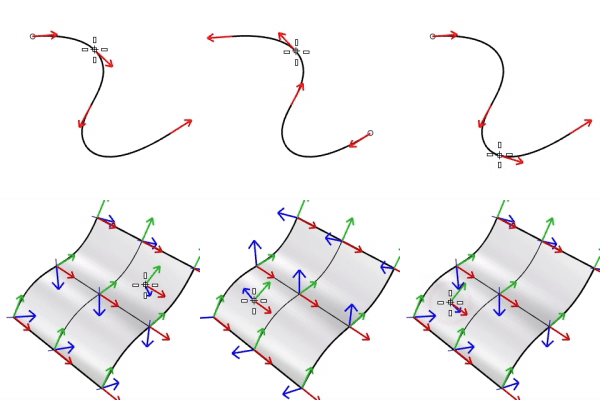
The Dir command displays and edits an object's direction or normal direction.
Steps
-
Select objects.
Arrows show the directions on curves or normal directions on surfaces.
If a single object is selected, move the cursor on the object to inspect the direction at the cursor location.
-
Click the mouse button on an object to flip (reverse) the direction for that object.
The command-line provides more flipping options.
Command-line options
Single curve option
Flip
Reverses the direction.
Multiple curve options
FlipAll
Reverses the directions on all selected curves.
Single surface options
UReverse/VReverse
Reverses the U or V direction.
SwapUV
Exchanges the U and V directions.
Flip
Reverses the normal direction.
Multiple surface options
FlipAll
Reverses the normal directions on all selected surfaces.
NextMode
Cycles through the Mode options.
Mode
FlipU/FlipV
Reverses the U or V direction for all selected surfaces.
FlipNormal
Reverses the normal direction for all selected surfaces.
SwapUV
Exchanges the U and V directions for all selected surfaces.
Note
-
Closed polysurfaces, surfaces, and lightweight extrusion objects cannot have their normal direction facing toward the interior of the object.
-
The direction and normal direction arrow color is controlled by the Tracking lines setting in Appearance: Colors Options.
Their size is controlled by the Direction arrow icon settings in Appearance Options.
- Search for "DirectionArrow" in Advanced settings to access more arrow appearances.

-
The status bar displays the parameter value at the cursor location when a single curve is selected, and the draft angle when a single surface is selected.
Related commands
| Toolbar | Menu |
|---|---|
|
|
|


The ShowDir command opens the Direction Analysis control and displays the direction of curves, surfaces, and polysurfaces.
Steps
- Select objects.
Direction arrows display on the object.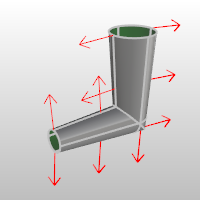
Direction Analysis options
Show
Direction
Displays the object's normal direction in viewports.
U (Surfaces only)
Displays the u direction.
V (Surfaces only)
Displays the v direction.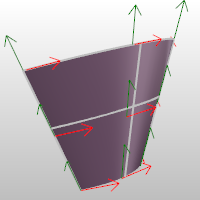
Reverses the direction.
Reverses the surface u direction.
Reverses the surface v direction.
Switches the u and v directions.
Direction color
Set the display color for the direction arrows.
The u and v direction colors are determined by the Options > Appearance > Colors settings for the X axis and Y axis lines.
Add Objects
Add objects to the Direction Analysis display.
Remove Objects
Remove objects from the Direction Analysis display.
| Toolbar | Menu |
|---|---|
|
|
|

The ShowDirOff command closes the Direction Analysis control and turns off direction display.