ChamferEdge
| Toolbar | Menu |
|---|---|
|
|
Solid Fillet Edge > Chamfer Edge |

The ChamferEdge command creates a ruled surface between selected polysurface edges with varying chamfer distances, trims and joins the chamfer surfaces to the surface.
Steps
-
Select the edges to chamfer, and press Enter.
Or, double-click an edge to select continuous tangent edges.
-
Select a chamfer distance handle, and drag it or type a new chamfer distance.
Or, use the handle command-line options.
-
Press Enter to create the chamfer.
Edge command-line options
ShowChamferDistance
Yes
Displays chamfer distance handles in the viewport.
No
Hides chamfer distance handles in the viewport. A hidden chamfer distance handle will display when the mouse cursor is close to it.
NextChamferDistance
Specifies the chamfer distance for the next edge.
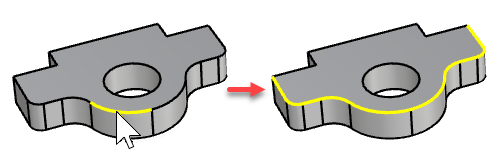
ChainEdges
Automatically selects connected edges based on continuity.
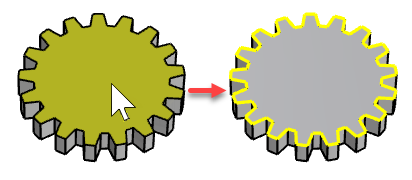
FaceEdges
Pick a face to select its boundary edges. Tangent edges are excluded.
Preview
Displays a dynamic preview. You can change the options and the preview will update.
PreviousEdgeSelection
In cases where the command is canceled or ended prematurely, the PreviousEdgeSelection option re-selects the previously selected edges. Supports multiple sets of previously selected edges for up 20 previous edge sets.
Edit
Edit the most recent selected set of edges.
Tip: When no command is running, double-clicking the object is the alternative way to start the editing mode.
To edit edges
-
Select the object to edit. The editable edges highlight.
-
Edit the size of the handles.
-
Click the SelectEdges option.
-
Use Shift+click to add edges. Use Ctrl+click to remove edges.
Remove all edges in the most recent edge set to return to the previous edge set.
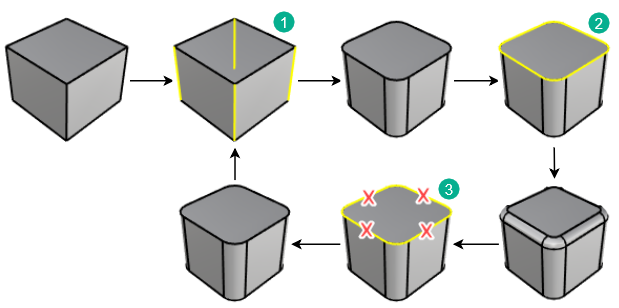
1) The first edge set. 2) The second edge set.
3) Remove all edges in the second edge set if you need to edit the first edge set.
ShowChamferDistance
See ShowChamferDistance in Edge command-line options.
AddHandle
Places new chamfer distance handles along the edges.
CopyHandle
Duplicates the selected handle at new locations along the edges.
RemoveHandle
Removes selected handles.
The default handles at the ends of edge segments can't be removed.
This option is visible when at least one handle has been added.
SetAll
Sets the same chamfer distance for all handles.
LinkHandles
When you change the chamfer distance of one handle, the other handles change by the same ratio.
RailType
Sets how the chamfer distance is measured to place the edges (rails) of the chamfer surface.
DistFromEdge
The distance from the edge to the two rails.

RollingBall
Rolls a sphere along the edge. The rails of the chamfer surface are where the sphere touches the surfaces.

DistBetweenRails
The distance between the two rails of the chamfer surface sets where it meets the adjacent surfaces.

SelectEdges
Allows selecting more edges after the selection has been closed.
TrimAndJoin
Trims and joins the resulting surface to the input surfaces.
History only works if TrimAndJoin=No.
Preview
See Preview in Edge command-line options.
Chamfer distance command-line options
These options appear on the command-line when you drag a handle point to change its value.
CurrentChamferDistance
Specifies the chamfer distance for the selected handle.
FromCurve
Select a curve to copy the chamfer distance from.
FromTwoPoints
Pick two points to set the chamfer distance.
Note
- Chamfer distance can be zero only at the end of an edge segment.