Hatch Fill Style Options
Solid
Uses the display color set in object properties.
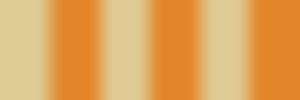
Linear Reflected
Uses linear gradient colors that mirror on repeat.
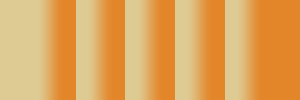
Linear Wrapped
Uses linear gradient colors that do not mirror on repeat.
Radial Reflected
Uses radial gradient colors that mirror on repeat.

Radial Wrapped
Uses radial gradient colors that do not mirror on repeat.

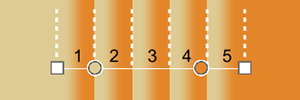
Repeat
Controls how many times the gradient span repeats between the start and end points.
Repeats do not extend beyond the start and end points.
-
Enter a number for the repeat value.
Gradient Stop Locations
A color stop defines a color at a percentage location in the gradient span.
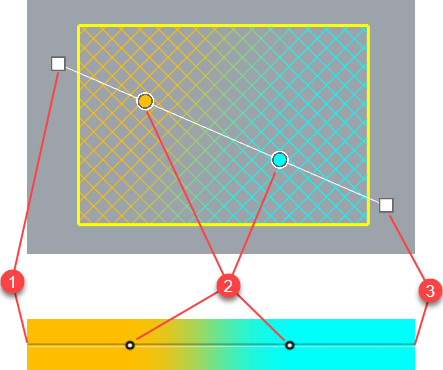
Gradient controls
The gradient controls allow using more than one color in a hatch. The color transition is smooth between colors. Gradient controls can be edited in the dialog or viewports. The start (1) and end (3) points define the gradient span. Color stops (2) define colors in the gradient.
Actions in the dialog
-
Shift-click, or double-click, on a color stop to change the color.
-
Right-click on the gradient span to add a new color stop.
-
Click the , , or button to edit the gradient in the viewport.
 Reverse Gradient Colors
Reverses the colors of the gradient.
 Reset Gradient Boundary
Moves the start and end points on gradient controls in viewports to the default locations.
Add a new color stop to the gradient.
Steps
-
Select a color.
-
Pick a location in the viewport.
Alternative steps
-
Right-click on the gradient span in the dialog at the location to add a new color stop.
- Select a color.
Edit the gradient in the viewport with command-line options.
Select a color stop in the viewport to remove.
Change the hatch properties to match a different hatch.