Extend
| Toolbar | Menu |
|---|---|
|
|
Curve Extend Curve > <Options> |

The Extend command lengthens or shortens a curve.
Steps
- Select a boundary object, type a length, or press Enter to extend without boundary edges.
- Select a curve or an surface edge near the end.
The extension will be automatically joined with the original curve.
To extend to multiple objects, pick the end of the curve again to extend the curve beyond the first boundary to the next. - Pick the end of the extension or type a length.
Note
- You can use any combination of curves, surfaces, and solids as boundary edges.
- If you want to extend two curves to meet each other simultaneously, use the Connect command.
Command-line options
Fence
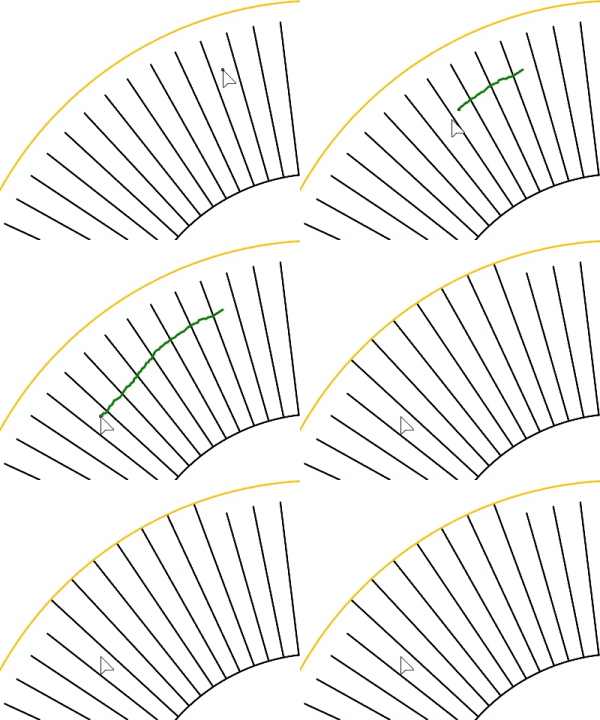
Runs the SelFence command to draw a freehand stroke. Any part of a curve crossed by the stroke will be extend to the boundary.
Curve
Select an existing curve as the stroke.
Type
Natural
Lines, polylines, and polycurves with a line at the end to extend are extended by line.
Arcs and polycurves with arc at the end to extend are extended by same radius arc.
Other curves are extended smooth.
Arc
Makes an arc extension tangent to the original curve.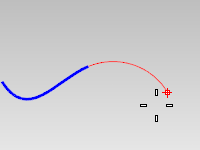
Arc options
Center
Extends a curve with an arc by picking the arc's center and endpoint.
Center steps
- Pick the arc's center point.
- Pick the arc's end point.
ToPoint
Extends a curve with an arc by picking the arc's endpoint.
ToPoint steps
- Pick the arc's end point.
Line
Makes a line extension tangent to the original curve.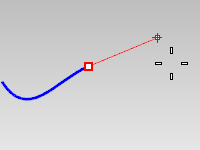
Smooth
Makes a smooth curve extension curvature continuous with the original curve.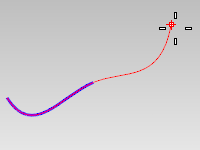
ToPoint
Extends a curve smoothly by picking the curve's endpoint.
ToPoint steps
- Pick the curve's end point.
Join (Yes/No/Merge)
Decides if the extended segment will be joined or merged with the input curve.
Yes — The extension is joined to the original curve, producing a single object (a polycurve). The original curve's geometry and parameterization are preserved exactly; the extension is added as an additional segment, so the point where they meet remains a segment boundary. This is useful when the original curve must not be altered.
No — The extension is created as a new, separate curve. The curve you picked is not modified at all. This is useful when you want the extension by itself, e.g., to trim it, assign it to a different layer, or use it as construction geometry.
Merge — The extension is merged into the curve itself rather than added as a segment. When the extension is the same kind of geometry as the curve end — a line extending a line, a same-radius arc extending an arc, or a smooth extension of a free-form curve — the result is a single, seamless curve span. This produces the cleanest result and is the default.
Undo
Reverses the last action.