Check files for errors
Auditing checks files for database errors.
Audit
| Toolbar | Menu |
|---|---|
|
|
Analyze Diagnostics > Audit |

The Audit command checks the current Rhino model for errors.
- When the Audit command detects a database error, it prints a detailed description of the error.
- Information displays when something is wrong with objects and their relationship to layers.
| Toolbar | Menu |
|---|---|
|
|
Analyze Diagnostics > Audit 3DM File |

The Audit3dmFile command displays a tree map of all data tables and entries in a 3DM file and provides a file summary.
- If files are large, damaged, or will not open with the Open command, the Audit3dmFile command might be able to diagnose the problem.
- Use the Rescue3dmFile command to recover geometry objects that can be read from a damaged 3dm file.
Command-line options
AuditThisFile
Audits the current 3DM file.
Browse
Selects a 3DM file to audit.
Audit3dmFile Window
Tree Map
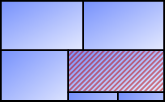
The left panel displays a tree map of all data entries in the 3DM file.
-
Each rectangle represents a data chunk, and its size gives you a visual clue about the amount of data it contains.
-
Rectangles for data tables have thick borders.
-
Rectangles for bad objects are filled with hatches.
To view a nested item
-
Select a table rectangle, and then select a smaller rectangle inside it.
The corresponding item highlights in the file navigator.
To focus on a data table
-
Right-click a table rectangle and select Expand... to display only that table in the tree map.
The navigation path above the tree map shows the current table location. Click All Tables to return to the full tree map.
File Navigator
The right panel lists the data tables and items in the 3DM file and shows their hierarchy.
Entry
The names of data tables and their nested items.
The Object Table organizes objects by layers. Other data tables organize their entries in their own ways.
-
Click the expand / collapse triangle to show or hide items nested in a data table.
-
Select a nested item to highlight the corresponding rectangle in the tree map.
Count
The number of nested items contained in each data table or entry
Size
The file size each data table or item occupies.
-
Click the Size column header to select the display unit for data sizes:
Auto, Bytes, Kilobytes (KB), Megabytes (MB), or Gigabytes (GB).
By default, it is set to Auto, which displays appropriate units based on the data size.
Context Menu
-
Right-click an item in the file navigator or a rectangle in the tree map to open the context menu.
You can copy the item’s UUID or perform actions specific to the item type.
For example, for a geometry item, you can select the object or zoom to it in all viewports.
Summary panel
The bottom panel contains the Audit Summary and Legacy Log tabs.
Audit Summary
Displays file information, including the 3DM version, application information, creation and edit details, issues, notes, units, tolerance, and display format.
Legacy Log
Displays plain-text data information for the 3DM file, equivalent to the output from the legacy Audit3dmFile command.
The legacy Audit3dmFile command can be run by typing -Audit3dmFile at the command line.
-
Click the
 button to copy the legacy audit log to the clipboard.
 -
Click the
 button to save the legacy audit log to a file on disk.