ArrayCrv


The ArrayCrv command creates copies of selected objects along a path, with an interactive preview and controls for array settings.
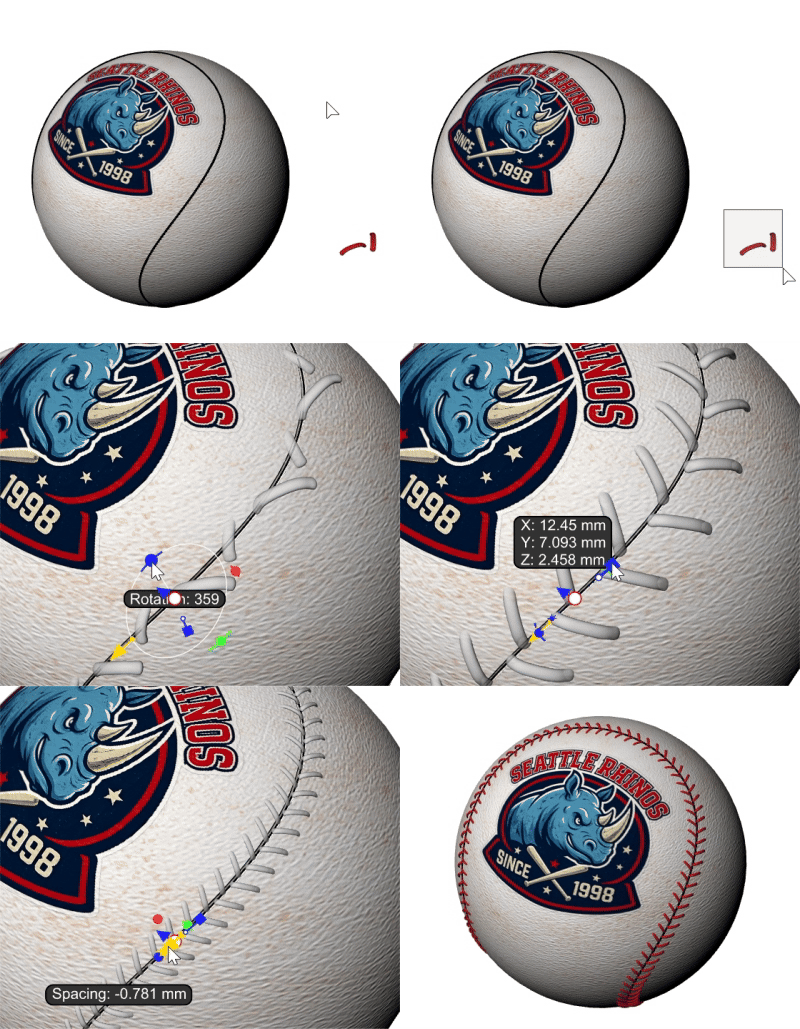
To create an array
-
Start the ArrayCrv command.
Press Enter to skip object selection and open the options dialog directly.
-
Select the object to array and press Enter.
-
Select a curve or an edge as the array path and press Enter.
-
Adjust the array settings in the dialog.
To edit an existing array
-
Double-click one of the objects in the array created with the ArrayCrv command.
Command-line options
Match
Uses the object and settings from an existing array created with the ArrayCrv command to create an array along another curve.
Steps
-
Select an object or the path curve in an existing array.
-
Select one or more target curves.
-
Adjust the array options if needed.
LegacyMode
Runs the ArrayCrvOld command, which uses the workflow of the legacy ArrayCrv command.
AutoChainEdges
Selects continuous tangent edges that belong to the same object as the path.
Options
Curve Selection
Curve
Click the  Select curve button and select a curve or an edge as the array path.
Span range
Sets the start and end positions along the array path.
By default, the full curve length is used as the range.
-
Click the % button to specify the range with percentage values.
-
Double-click the slider to enter a specific value.
-
Hold Shift while dragging the slider to snap to increments of 1.0.
Using on-screen handles
-
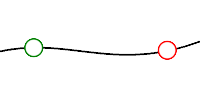
Drag the white dot with the green outline to adjust the start position of the span range.
The tooltip displays the following information:
Start: The start position of the span range, measured from the path start point and shown as a percentage of the path length.
Range: The length of the span range in model units.
Inset: The distance from the start of the path to the start of the span range in model units.
-
Drag the white dot with the red outline to adjust the end position of the span range.
The tooltip displays the following information:
End: The end position of the span range, measured from the path start point and shown as a percentage of the path length.
Range: The length of the span range in model units.
Inset: The distance from the end of the span range to the path end point in model units.
-
Hold Shift while dragging to snap in 0.1-unit increments.
-
Double-click the handle to enter a new value.
As percent
Displays the span range values as percentages of the curve length.
 On ends
Adjusts the spacing between arrayed objects so that the base points of the first and last objects are placed at the start and end of the span range.
At kinks
Adjusts the spacing between arrayed objects so that the objects near kinks have their base points placed at the kinks between path segments.
Repeat segments
When At kinks is enabled, applies the span range separately to each curve segment between kinks, rather than to the entire curve.
Object Selection
Source
 Object
Uses objects in the model as the array source.
-
Click the
 Select Objects button and select the objects to array.
 Block
Block
Uses a block definition as the array source.
Available only when the model contains block definitions.
-
Select a block definition from the list.
Array objects
Selects the objects or block definition to array along the path curve, based on the Source setting
Use object size
Resets the Start, Mid, and End sizes in Sizes settings to the source objects’ original dimensions.
Object Count and Spacing
Object count
Sets the number of objects in the array.
The initial number is automatically calculated to distribute objects within the span range with zero spacing.
-
Type 0 to restore the automatically calculated value.
Spacing distance
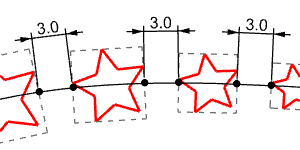
Sets the distance between the bounding boxes of adjacent arrayed objects.
The actual distance may vary along a free-form path. Positive and negative values are supported, and the automatic object count updates accordingly.
Using on-screen handle

-
Drag the yellow arrow handle to adjust the spacing distance.
-
Hold Shift while dragging to snap in 0.1-unit increments.
-
Double-click the handle to enter a new value.
As percent
Specifies the spacing distance as a percentage of the object size.
Relax spacing
Adjusts the spacing between arrayed objects so that they are distributed across the entire span range.
Box rotation spacing
Adjusts the positions of arrayed objects to maintain the specified spacing between their bounding boxes when you change Rotation, Pitch, or Roll under Transform Adjustments.
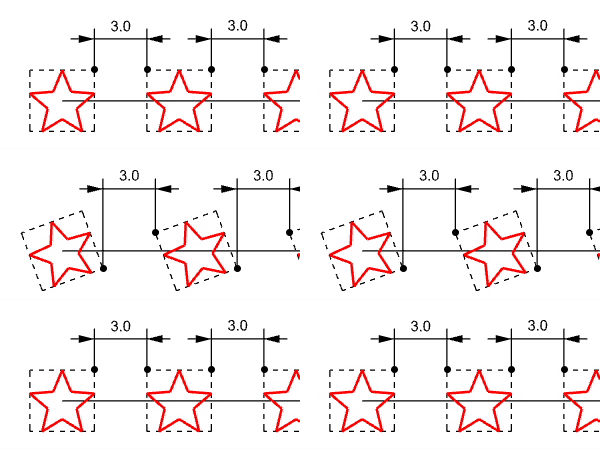
When Relax spacing is enabled, arrayed objects redistribute across the span range, making the effect of Box rotation spacing less apparent.
Orientation
Controls how the arrayed objects are oriented and aligned relative to the path curve.
Orient direction
 Curvature
Orients the objects using the local curvature frame of the path curve.
 World Z
Orients the objects using the World Z direction.
 Object
Orients the objects so that their normal directions point toward a selected object.
 Origin
Orients the objects so that their normal directions point toward the World origin.
 Stairlike
Keeps the objects horizontal as they are arrayed along the path curve.
 Between
Orients and places the arrayed objects between the objects of an existing array.
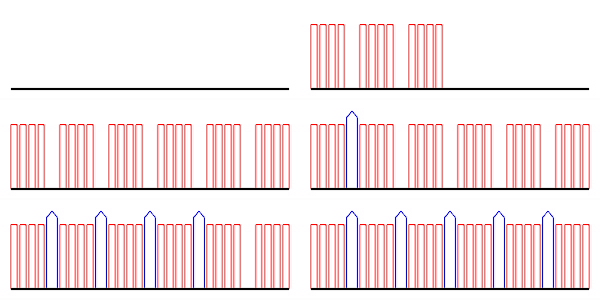
Select orientation object
Selects an object in the viewport to use as an orientation reference for the arrayed objects.
 Flip orientation direction
Reverses the normal directions of the arrayed objects if they point at the opposite direction.
Vertical align
Sets the vertical alignment of the object's bounding box relative to the path curve.
 Bottom
Aligns the bottom of the object's bounding box with the path curve.
 Center
Aligns the vertical center of the object's bounding box with the path curve.
 Top
Top
Aligns the top of the object's bounding box with the path curve.
 In place
Uses the object's world location as the basis for vertical alignment to the path.
Horizontal align
Sets the horizontal alignment of the object's bounding box relative to the path curve.
 Left
Left
Aligns the left side of the object's bounding box with the path curve.
 Center
Aligns the horizontal center of the object's bounding box with the path curve.
 Right
Right
Aligns the right side of the object's bounding box with the path curve.
In place
Uses the object's world location as the basis for horizontal alignment to the path.
Sizes
Controls the size of the arrayed objects along the path.
 Toggle uniform /
  non-uniform
Switches between uniform scaling and independent X, Y, and Z scaling.
Start / Mid / End
Sets the object size at the start, middle, and end of the array.
X / Y / Z
Sets the scale factor in each axis direction for the corresponding Start, Mid, or End size.
Using on-screen handle

-
Drag a square handle to adjust the size.
-
Hold Shift while dragging to snap in 0.1-unit increments.
-
Double-click the handle to enter a new value.
-
In Uniform mode, the blue square handle adjusts the X, Y, and Z sizes together.
-
In Non-uniform mode, the red, green, and blue square handles adjust the X, Y, and Z sizes independently.
 Lock Mid Size
Links the Mid size values to the Start size values.
Lock End Size
Links the End size values to the Mid size values.
-
When the size locks are disabled, square on-screen handles appear at the start, middle, and end positions along the array path.
Transform adjustments
Adjusts the rotation and position of the arrayed objects relative to their orientation along the path.
Rotation
Rotates the arrayed objects around their local Z axis.
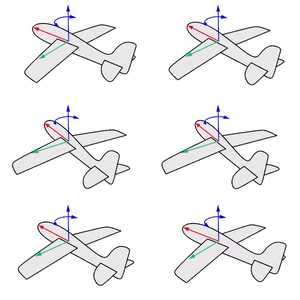
Pitch
Rotates the arrayed objects around their local Y axis.
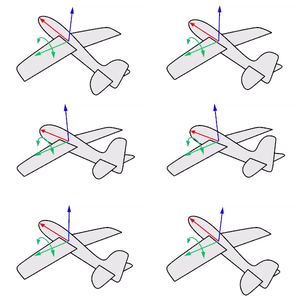
Roll
Rotates the arrayed objects around their local X axis.
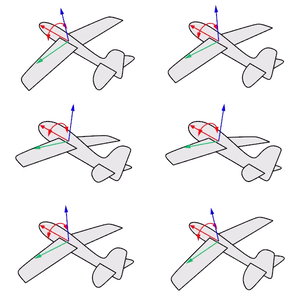
-
Drag the slider to change the angle.
-
Double-click the slider to enter a specific value.
Using on-screen handle
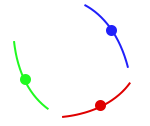
-
Drag the blue dot handle to adjust Rotation, the green dot handle to adjust Pitch, or the red dot handle to adjust Roll.
-
Hold Shift while dragging to snap in 15-degree increments.
-
Double-click the handle to enter a new value.
Offsets
Adjusts the object position relative to the curve.
U / V / N
Offsets the objects along the U, V, or Normal direction.
Using on screen handle

-
Drag the blue arrow handle to adjust the offset in the Normal direction.
-
Hold Shift while dragging to snap in 0.1-unit increments.
-
Double-click the handle to enter a new value.
As Percent
Specifies the offset values as percentages of the object size.
Object count
Displays the number of objects that will be created in the array.
Selects additional paths to create arrays using the same source objects and array settings.
AutoChainEdges
Selects continuous tangent edges that belong to the same object as the path.
Add
Selects additional curves or edges as the array paths.
Remove
Removes selected additional array paths added during the current command session.
| Toolbar | Menu |
|---|---|
|
|
Transform Array > Along Curve on Surface |

The ArrayCrvOnSrf command copies objects spaced and rotated along a curve on a surface.
Details
The surface normal determines the orientation of the arrayed objects.
Steps
| Command-line options | |
|---|---|
|
Divide |
Type the number of objects. |
|
Multiple |
Specify the distance between objects.
|
|
Type subcrv to select part of a curve as input. |
|